I Built an Extension That Connects Claude.ai Web Chat to Local Folders: claudeFS
In one sentence: claudeFS is a free, open-source Chrome and Edge extension that lets regular Claude.ai web chat read, search, and modify files in a user-authorized local folder—without Claude Code, Claude Desktop, an API key, or the command line. It also works on Claude’s free plan.
I started using AI a few years ago with ChatGPT, and over time I gradually moved more of my work to Claude. AI can do far more now than just chat: it can generate images, music, video, and, of course, code.
For coding, I mostly use Claude Code these days. But when I’m thinking through an idea, I still prefer the web version of Claude. You can certainly have a conversation in Claude Code, but it has hands and feet—it can run commands and take action. Before long, it starts nudging you, directly or indirectly: great idea, let’s build it. That’s not always the mood I want. For open-ended thinking, where I can wander, rethink things, throw ideas away, and start over, the regular claude.ai chat just feels better.
There is one thing that has always bothered me about working in the browser, though: dealing with actual files.
If I want Claude to see a file, I have to upload it manually. And after a long conversation, if I want to save the result, I usually have Claude generate some Markdown, then either copy and paste it into a local file or download it and move it into the right folder myself. After enough back-and-forth, versions start multiplying, local files and chat context drift out of sync, and the whole process gets annoying fast.
So I kept coming back to one question: what if the web version of Claude could read and write files in a local folder directly?
What I wanted was to connect both directions:
One side is read—Claude should be able to read files from a local folder directly, so I don’t have to keep uploading them.
The other side is write—Claude should be able to modify those same files directly, so I don’t have to keep copying, pasting, downloading, and moving things around. Once both directions work, the manual file shuffling disappears. I can just focus on the conversation, and the files move in and out as needed.
After some research and development, I ended up building a browser extension for Claude.ai. I called it claudeFS, short for Claude File System.
How claudeFS works
After installing the claudeFS extension in Google Chrome or Microsoft Edge, open claude.ai and authorize a local folder. Claude can then read, search, and modify files in that folder directly during the conversation.
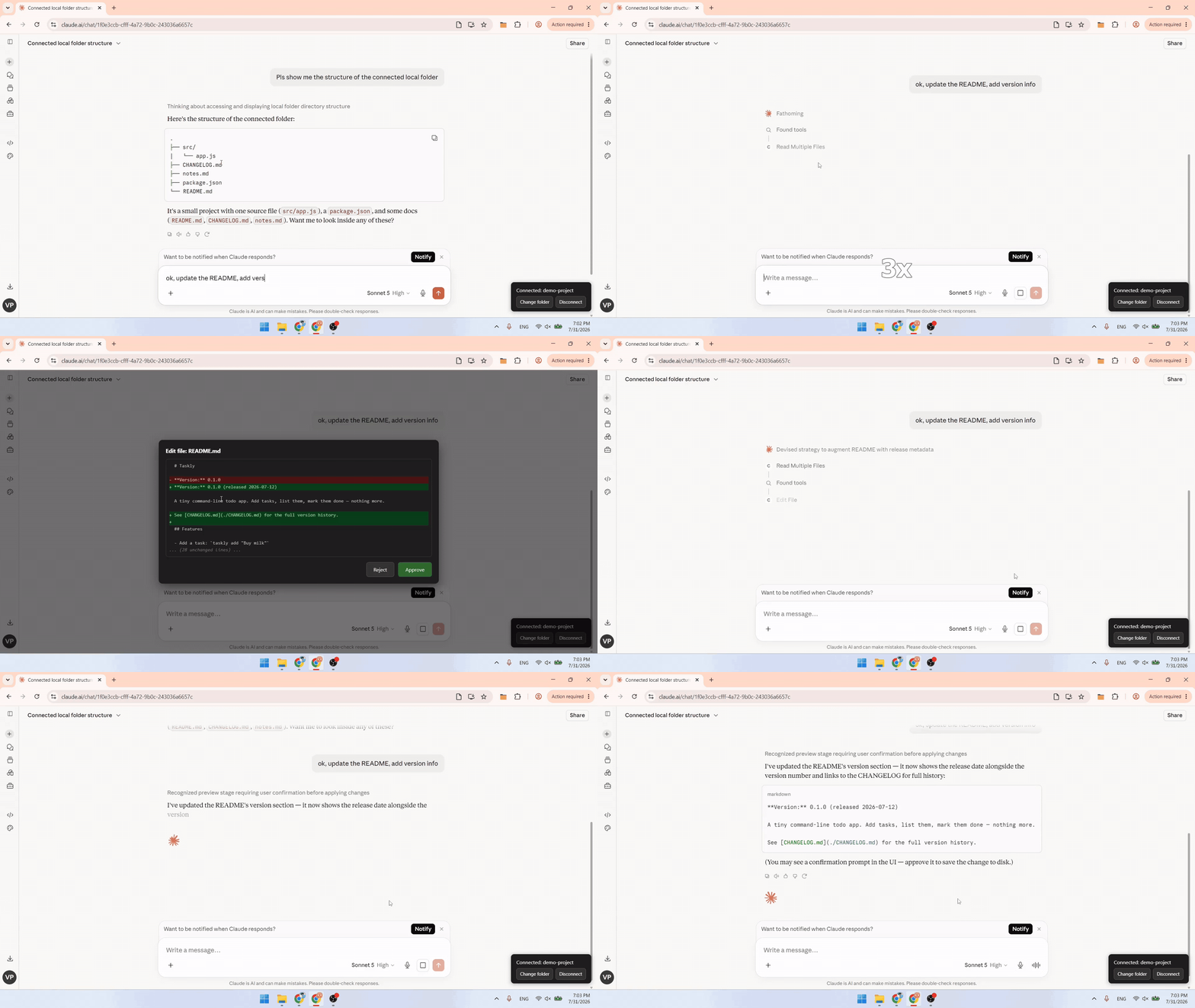
Full demo video: https://youtu.be/j7PDsVeVXGw
Can Claude.ai web chat access a local folder directly?
Regular Claude.ai web chat cannot use a local folder as a persistent read/write workspace by itself. If that’s what you want, the common options are quite different:
| Option | Stay in regular claude.ai Chat | Access a local folder | Requires another local program | Requires command line |
|---|---|---|---|---|
| claudeFS | ✅ | ✅ | ❌* | ❌ |
| Manual upload | ✅ | ❌ | ❌ | ❌ |
| Claude Code | ❌ | ✅ | ✅ | ✅ |
| Claude Desktop / Cowork | ❌ | ✅ | ✅ | ❌ |
* claudeFS only requires a Chrome or Edge browser extension. You do not need to install a separate local application.
So if what you want is to keep using regular claude.ai web chat, avoid switching to Claude Code or Desktop, avoid the command line, and still let Claude read and write a local folder directly, that is exactly the use case claudeFS was built for.
Who claudeFS is for
If your work revolves around text files—source code, Markdown or TXT documents, notes, or a knowledge base such as an Obsidian vault—and you like working interactively with Claude in the browser, claudeFS may be a good fit.
The main benefit comes down to three things: the conversation stays in the browser; Claude can actively find and read files you have authorized; and the results of the conversation can be written directly back to your local folder.
claudeFS and Claude Code are complementary, not replacements for each other. Claude Code is built for execution-heavy work: coding, testing, building, large refactors, and so on. claudeFS is more about conversation and reading or writing text. If the task is primarily about getting things done in code, Claude Code is the better tool.
For office-style document workflows involving formats such as Word documents or PDFs, neither claudeFS nor Claude Code is the ideal fit. In those cases, Claude’s desktop app is probably worth trying instead.
The version of claudeFS currently published in the browser stores handles only plain-text files: source code, TXT, Markdown, CSV, and similar formats. It cannot read binary file formats.
One extra note: the open-source version on GitHub can already read images and audio and pass them into the conversation as content. That capability simply has not been packaged into the browser-store release yet. If you want to try it, you can install the extension from source.
How to use claudeFS
Three steps:
- Install the extension from a browser store.
- Open claude.ai, click the connection button in the lower-right corner, and choose a local folder.
- Say something like, “Read the local folder,” and that’s it.
One small tip: Claude has to discover the file tools before they appear as available tools in that conversation. If Claude does not use them right away, try phrasing your request more explicitly around reading, searching, or editing local files.
On safety: every write operation—editing, deleting, or moving a file—shows a diff confirmation dialog before anything is changed. If you do not approve it, claudeFS does not touch the file.
Where to install claudeFS
- Chrome Web Store: https://chromewebstore.google.com/detail/claudefs/dgejoeopjlibbnbglaheaokkhmddedcf
- Edge Add-ons: https://microsoftedge.microsoft.com/addons/detail/claudefs/mfngoeppdmboplcgllagnnggehdcigna
- Open source (MIT): https://github.com/vincentping/claudeFS
Where claudeFS stands today
I originally built this little tool because I needed it myself, and I now use it every day.
For development projects, for example, I connect Claude.ai to the project folder in the browser. That lets Claude understand the project context, help me think through tasks, and write task plans back into the project directory. At the same time, I open the same project in Claude Code, let Code review and execute those tasks, and save the results. Then I go back to Claude.ai and use it to review the work.
For writing projects, including this article, I talk with Claude.ai while claudeFS lets it read the project notes stored locally.
After using it myself for a while, I shared it with a few friends. Their feedback was positive, which is what finally pushed me to publish it in the browser stores and open-source it. Maybe it can help other people who work the same way.
The Edge extension was approved in about a day, and Chrome took two days. I suspect that helped because claudeFS runs its file operations inside the browser, has a relatively small privacy and security footprint, and is free and open source.
One final caveat: claudeFS relies on a private interface inside claude.ai. If Anthropic changes that interface in the future, claudeFS could stop working. Until then, though, I’ll keep using it while it works.
As a side experiment, I also tried bringing a similar mechanism to ChatGPT through an experimental relay project. I learned quite a bit from that, but that’s another story for another time.
claudeFS is an independent open-source project. It is not affiliated with or endorsed by Anthropic. Claude is a trademark of Anthropic.
Subscribe by email
Get new posts delivered straight to your inbox.
Your email is only used for new-post notifications. Unsubscribe anytime.