WSL2 Under the Hood: One VM, One File, One IP That Never Stays the Same
2026-02-27 by Vincent Ping en cnThe previous article "Install Linux on Windows 11 in 5 Minutes" covered how to install WSL2 and get it running. Once you've had it going for a while, the quirks start to show.
You delete a bunch of files inside Linux — Windows disk space doesn't move. You try to access Windows files from inside WSL2 — painfully slow. A network script that worked fine yesterday stops connecting after a wsl --shutdown.
None of this is a bug. It all comes directly from how WSL2 is designed under the hood. Once you understand the key design decisions, these problems become easy to diagnose.
What Kind of VM Is It, Exactly?
There are two types of hypervisors. Type 1 (Bare Metal) runs directly on hardware and hosts multiple operating systems — no host OS in between. Type 2 runs on top of an existing OS, like VirtualBox or VMware on your Windows desktop.
Type 1 is more efficient, suited for data center servers. Type 2 is more flexible, better for developer workstations.
So where does WSL2 fit?
At first glance, it looks like Type 2 — Linux is running inside Windows, it can't run standalone, and we're using it on a client machine. But the performance is surprisingly good, almost like running on bare metal.
The reality is it's neither. Or rather, it has the efficiency of Type 1 and the flexibility of Type 2.
WSL2 runs a real Linux kernel inside Windows.
But this "VM" isn't like VirtualBox or VMware. It's called a Utility VM, running on Microsoft's own Hyper-V Hypervisor.
A regular VM has to simulate an entire hardware stack: motherboard, BIOS, GPU drivers, storage controllers — all of it. WSL2's Utility VM skips all of that:
- No BIOS emulation
- No virtual hardware drivers
- No fixed memory reservation
It only exposes what the Linux kernel actually needs: CPU time, memory pages, and I/O channels. The result is fast startup and near-zero memory use when idle.
If we had to put a label on it: Type 1.5 — Hyper-V underneath, but far lighter than a traditional VM.
One thing worth clarifying: Hyper-V actually has two layers. The first is the Hypervisor itself, loaded directly by the Windows 11 bootloader at startup — it runs below the OS at Type 1 level, and it's always on. That's the layer WSL2 uses. The second layer is the Hyper-V management services — the "Hyper-V xxx" entries you see in services.msc. Those are for Hyper-V Manager and traditional VM management. WSL2 doesn't use them at all, so it's completely normal for those services to be stopped.
From WSL1 to WSL2: Why the Design Changed
Why is WSL2 designed this way? We need to look back at the history — starting with how WSL1 worked and where it broke down.
WSL1, released in August 2016, was built around syscall translation: when you ran ls or make inside it, WSL1 intercepted those Linux kernel calls and translated them into Windows API calls in real time. Clever idea — but it fell apart under real workloads.
Problem 1: Translation itself has a cost. Every syscall — reading a file, spawning a process, checking permissions — goes through three steps: intercept, translate, execute. This isn't something that happens occasionally. A running program can trigger thousands of syscalls per second. The overhead adds up fast.
Problem 2: The file systems are fundamentally incompatible. Linux uses ext4, built around inodes. Windows uses NTFS, with a completely different permission model. WSL1 had to do real-time mapping between the two — but Linux concepts like symlinks, permission bits, and case-sensitive filenames either have no equivalent in Windows or behave differently. The translation cost was high, and the results weren't always correct.
Problem 3: Some things simply can't be translated. This was WSL1's real breaking point. Containers (Docker) depend deeply on two Linux kernel mechanisms: namespaces, which isolate what a process can see, and cgroups, which limit resource usage. These are native Linux kernel capabilities — Windows has no equivalent. There's nothing to translate to. So Docker in WSL1 never worked, period.
WSL2's solution was direct: stop translating. Put a real Linux kernel in there instead.
With that, Linux syscalls go straight into the kernel — no middle layer. The ext4 file system runs natively inside the VM with no NTFS mapping. Namespaces and cgroups actually exist, so Docker just works.
The performance gain wasn't a tweak. It was a fundamental rethink.
Your Entire Linux Lives in One File
Let's see what Linux actually looks like inside the Windows file system.
Open File Explorer and navigate to C:\Users\[username]\AppData\Local\wsl\. You'll find a subfolder with a GUID name (something like {445ca81a-6e98-4e8d-aa7b-da5591a61d49}). Inside it is a file called ext4.vhdx.
(Older versions of WSL2 used the distro name as the folder name, like Ubuntu. Newer versions switched to GUIDs.)
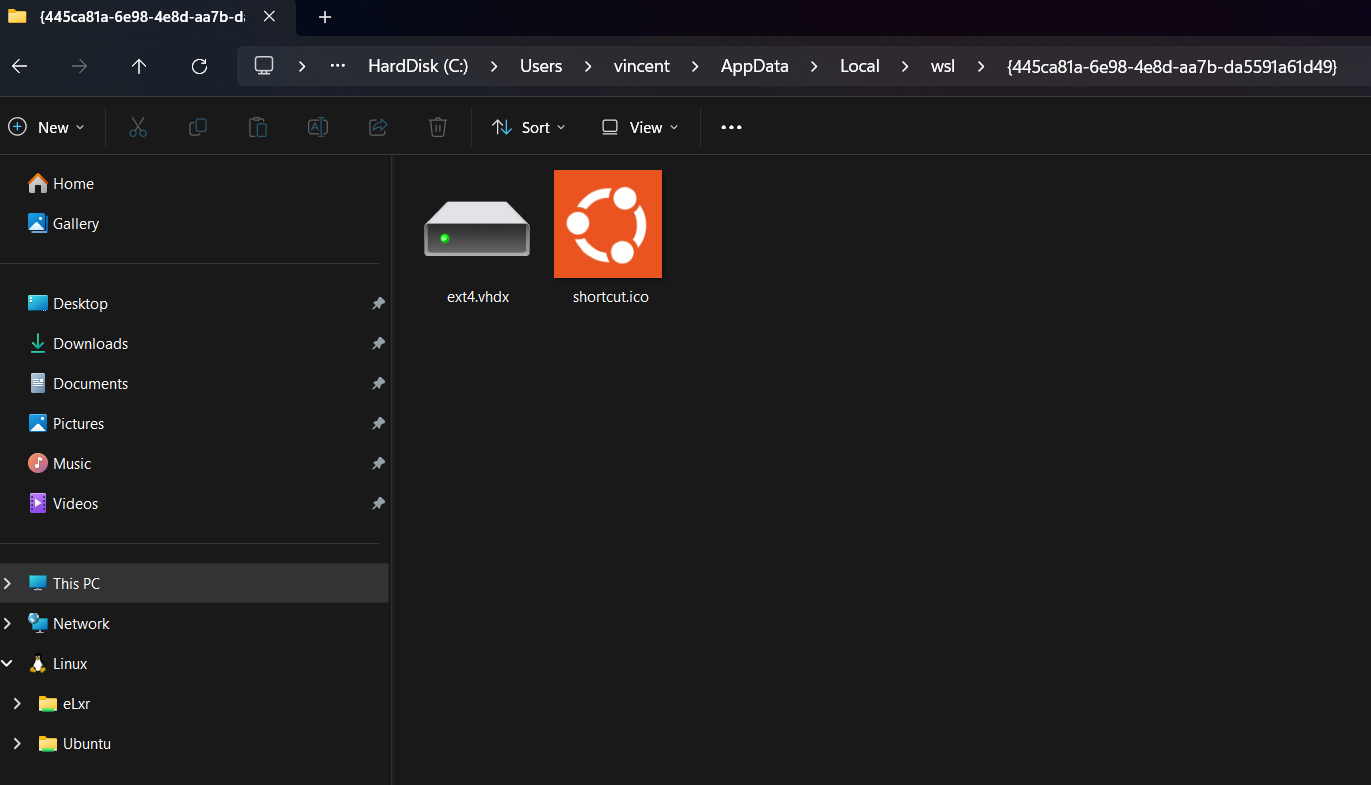
Your entire Linux system is that one file. Every package installed, every repo cloned, every line written to a log — it's all in there.
Here's a counterintuitive trap: .vhdx is dynamically expanding, so it grows as you add data. But deleting files inside Linux does not shrink the .vhdx.
Delete 20 GB of dependencies? Windows disk usage won't budge. After a few months, the .vhdx ballooning to several hundred GB is common — even if the actual Linux content is much smaller.
The fix is Windows' built-in diskpart. Close all WSL windows, run wsl --shutdown, then:
diskpart
> select vdisk file="C:\Users\[username]\AppData\Local\wsl\{your-GUID}\ext4.vhdx"
> attach vdisk readonly
> compact vdisk
> detach vdisk
> exit
This compresses the empty space inside the virtual disk and gives it back to Windows. Anyone maintaining a WSL environment long-term should run this periodically.
Why Is Cross-System File Access So Slow?
This is WSL2's most common performance complaint: accessing Windows files from inside Linux (anything under /mnt/c/) is painfully slow. Restarting WSL or switching commands doesn't help.
What about the other direction? Opening Linux files from Windows Explorer (the penguin icon in the left sidebar) — just as slow.
Same reason: both directions go through the same channel.
WSL2 runs two completely separate file systems:
- ext4, inside the Linux Utility VM (paths like
~/projects/) - NTFS, on the Windows side (accessed from Linux as
/mnt/c/)
Whichever direction you're crossing, every request goes through: the Hyper-V virtualization layer → tunneled via the 9P protocol → reaches the other side → data comes all the way back. Every single file operation makes that round trip.
(9P is a network file-sharing protocol. WSL2 runs a 9P server internally — it essentially treats the other side's file system like a network share on a LAN.)
For anything that reads and writes lots of small files frequently, each operation is a 9P round trip through the virtualization layer — 10 to 50× slower is completely normal.
The rule is simple: keep files where you use them. Files you work on in WSL2 go in the Linux file system (~/). Windows projects stay in NTFS. Don't make files cross the boundary repeatedly — no configuration can work around this physical constraint.
The IP That Keeps Changing
When WSL2 starts, Windows builds a small internal virtual LAN: Linux gets a virtual network card, the Windows host gets one too, and they talk through this private network using addresses in the 172.x.x.x range.
The problem: every time WSL2 restarts via wsl --shutdown, this virtual LAN gets rebuilt and IPs are reassigned. It might be 172.28.80.1 one time, 172.19.32.1 the next.
This creates two distinct issues — worth separating:
Windows connecting to Linux services: Say you're running a web server inside Linux and want to open it in a Windows browser — don't worry about the IP. Just use localhost. Microsoft handles automatic forwarding on the Windows side. Nothing to configure here.
Linux connecting to Windows services: This direction is trickier. If a script needs to call an endpoint on the Windows host, or connect to a database running on Windows, Linux needs to know the current Windows host IP to get there.
And that IP is exactly the one that changes every restart.
The good news: every time WSL2 starts, it automatically writes the current Windows host IP into /etc/resolv.conf on the Linux side:
cat /etc/resolv.conf
# nameserver 172.28.80.1  ← this is the Windows host IP right now
Any script that needs to reach back to Windows should read this value dynamically — never hardcode a specific IP. Hardcode it, and after the next restart it silently stops working. No error, no warning — just mysterious failures that take a long time to trace.
Keeping WSL2 From Eating All Your Memory
Let's talk about resource limits. By default, WSL2 can use up to 50% of system memory and all CPU cores. On a 32 GB machine running heavy workloads, that noticeably squeezes Windows-side applications.
How do we configure it? Windows now includes a built-in GUI tool called WSL Settings — just search for it and open it. Memory limit, CPU core count, and swap size are all right there. Adjust and save.
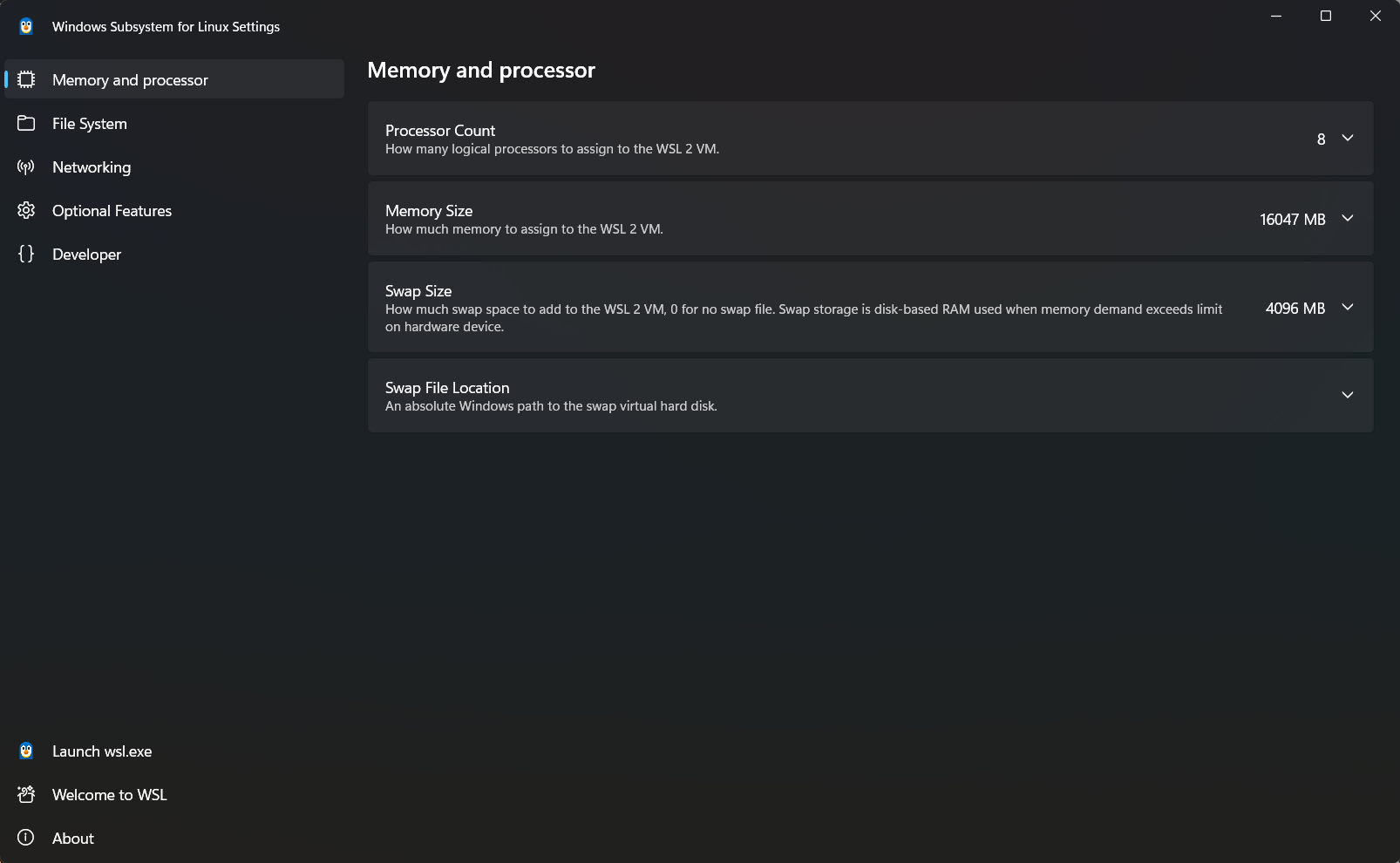
If you prefer editing manually, create or edit .wslconfig in C:\Users\[username]\:
[wsl2]
memory=8GB
processors=4
swap=2GB
Both approaches work the same way. Run wsl --shutdown after saving — changes take effect on the next start. Tune the numbers to your machine; there's no universal right answer.
Why Did Microsoft Build This?
Some people wonder — why would Microsoft go to all this trouble to run Linux inside Windows? Weren't they worried about it cutting into their business?
There's a clear business logic behind it. Three reasons, actually.
Reason 1: Win back developers. Between 2010 and 2018, a massive number of developers moved from Windows to MacBooks — because macOS natively supports Unix toolchains, while Windows developers were fighting Cygwin, path escaping, and permission incompatibilities. Microsoft saw the pattern: control the developer experience, control the ecosystem. WSL2 was the counterpunch — make Windows a platform developers actually want to use.
Reason 2: A beachhead for the cloud. Every major cloud platform runs Linux. Developers who use WSL2 locally — learning shell, apt, systemd — build skills that transfer directly to cloud environments. When they're ready to move workloads up, the path of least resistance leads straight to Azure.
Reason 3: A prerequisite for the container era. Docker and Kubernetes require a real Linux kernel. Without WSL2, Docker Desktop on Windows needed a much heavier standalone VM. WSL2 made containers feel natural on Windows — and comfortable Docker users are one step closer to Azure.
WSL2 isn't a product. It's a layer of strategic infrastructure. A company that once called Linux "a cancer" spent years building what is arguably the most polished Linux environment on any platform. Once the business logic clicks, everything makes sense.
Quick Reference: Things That'll Bite You
wsl --unregister is a hard delete. The .vhdx file disappears instantly — no confirmation, no Recycle Bin, no recovery. Always run wsl --export [distro-name] [backup.tar] before using it.
The .vhdx silently bloats. Disk space freed inside Linux doesn't return to Windows automatically. On long-running WSL machines, run diskpart compact vdisk periodically — otherwise one day you'll suddenly find the C drive full.
Where files live affects performance. Files that need frequent access inside WSL2 should live in the Linux file system (~/), not /mnt/c/. Making this clear resolves most "why is WSL2 so slow" complaints.
Kernel errors: update before reinstalling. WSL2's Linux kernel is maintained by Microsoft separately from your distro. For mysterious crashes, run wsl --update first — reinstalling the distro almost certainly won't fix a kernel-level issue.
Installing WSL2 is the first step. Understanding how it actually behaves is what makes you comfortable using it.