I recently started training for the CompTIA A+ certification at Per Scholas. Core 2 covers a substantial amount of Linux-specific content.
To get more comfortable with Linux — especially command-line operations — I needed a Linux system to practice on. Since my machine runs Windows 11 Pro, my first instinct was to set up a virtual machine using VirtualBox or VMware. But that approach demands a lot of system resources. After some back-and-forth with AI, I discovered that modern Windows ships with WSL2 (Windows Subsystem for Linux 2) built in. Once installed, you can launch a Linux system directly inside Windows.
Quick Installation
No fluff — let's get started.
Run CMD as Administrator on Windows, open the command line, and enter the following command:
wsl --install
After pressing Enter, Windows will begin downloading the default Linux distribution — Ubuntu. Once the download finishes, installation starts automatically. You'll then be prompted to create a user account (the default username matches your current Windows username) and set a password. Note: password input is invisible — just type and press Enter. You'll be asked to confirm it once more.
Install Linux with wsl --install command in Windows
Once everything completes successfully, congratulations — you now have a Linux/Ubuntu system inside Windows, natively.
Notes
-
WSL2 is supported on all Windows 11 editions (Home, Pro, and Enterprise). For Windows 10, make sure your build is 2004 (Build 19041) or later.
-
WSL2 relies on hardware virtualization. If installation keeps failing, check whether hardware virtualization is enabled. Open Task Manager, click the Performance tab, and select CPU. Look for Virtualization in the lower-right corner to see whether it's enabled.
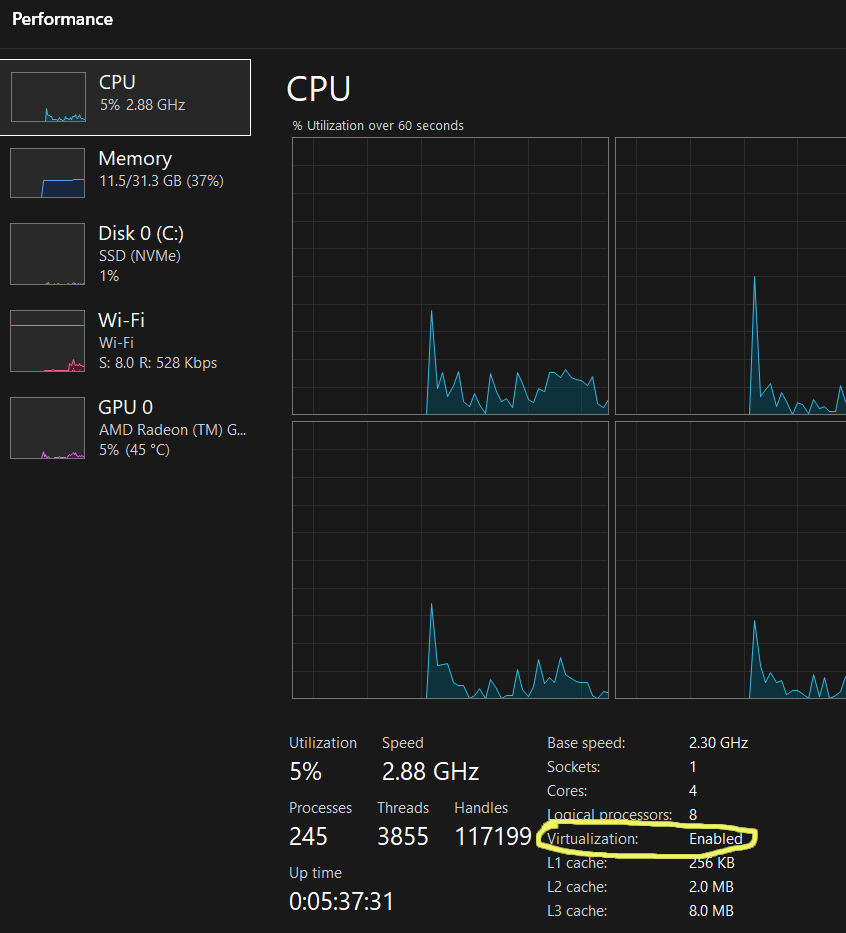 If Virtualization shows as Disabled, restart your computer and repeatedly press
 F2orDelto enter BIOS/UEFI settings. Locate theIntel VT-xorAMD-Voption and set it toEnabled. -
If nothing happens after installation completes, try restarting Windows.
Basic Usage
Once installation is done and Windows has restarted, open File Explorer. At the very bottom of the left navigation panel, you'll be pleasantly surprised to find a Linux penguin icon. Click it to see a list of your installed Linux distributions. If you followed the command above, you'll see an Ubuntu directory.
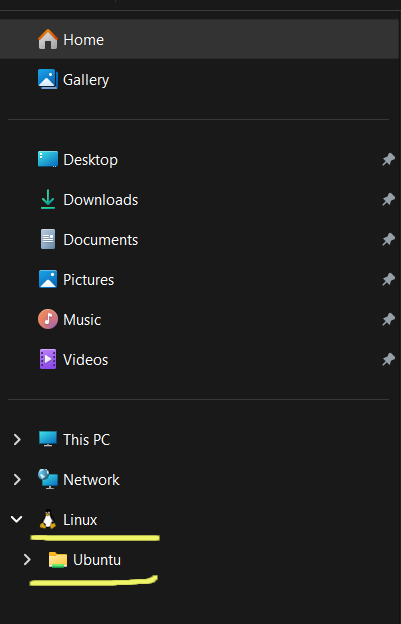
Click that directory and you're taken straight to the root of your Ubuntu filesystem. You can drag files from your Windows desktop into it, or pull files out from Ubuntu back to Windows. This drag-and-drop file exchange is more convenient than anything a traditional virtual machine offers.
Another change shows up in the CMD terminal. In the dropdown next to the title bar, you'll now see an Ubuntu option. Click it and a new tab opens running Ubuntu directly — extremely convenient.
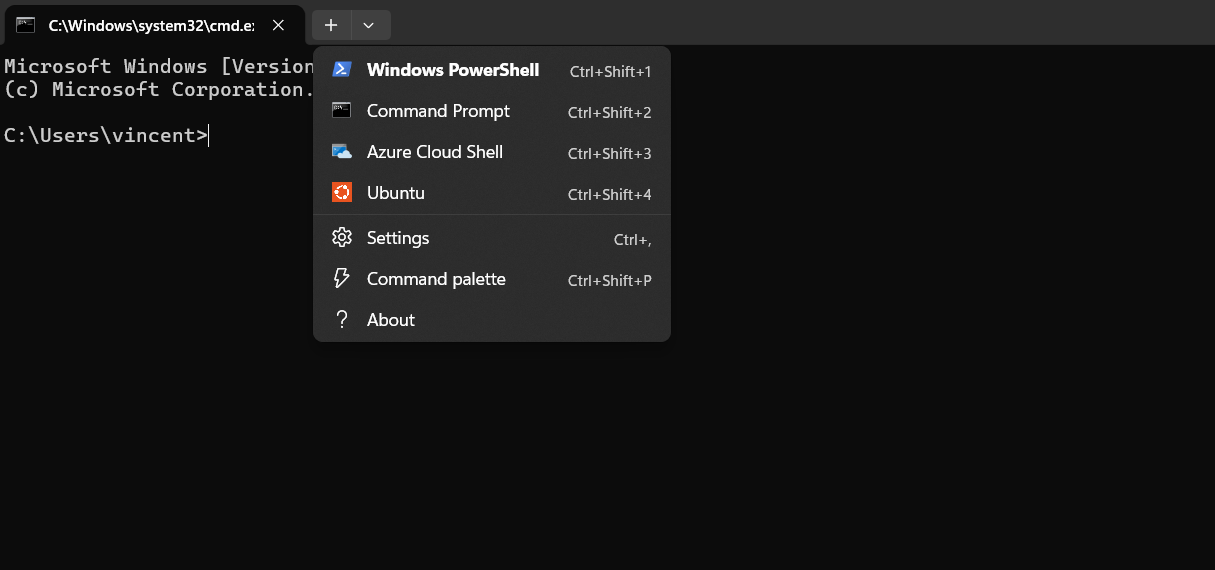
There are other ways to launch Linux/Ubuntu as well — for example, press Ctrl+R, type wsl, and hit Enter. Or simply type wsl in CMD and press Enter.
Launching Linux/Ubuntu this way is fast — nearly as instant as opening any Windows app — and uses very little resources. Traditional virtual machines simply can't compare.
To exit Linux and return to Windows, just type exit.
Other WSL Commands
We used wsl --install to install Ubuntu, but there are other WSL options worth knowing.
(The following commands are run in Windows CMD — not inside Linux.)
wsl --list: Lists all currently installed Linux distributions.
wsl --list --online: Lists all Linux distributions available for download from Microsoft.
To install a different Linux distribution (e.g., Kali Linux):
wsl --install --Kali-linux
If you have multiple distributions installed, launch a specific one by name:
wsl -d Kali-linux
wsl --status: Displays current WSL status information.
To remove a Linux distribution (e.g., Kali Linux):
wsl --unregister Kali-linux
This is a physical-level wipe! Once executed, the corresponding Linux folder and all its data vanish instantly with no recovery possible. BACKUP your DATA!
Additional Tips
-
After closing all Linux windows, Linux is still running in the background on standby. To fully release those resources, run:
wsl --shutdown -
If you get an error on startup one day, don't rush to uninstall. Try this command first:
wsl --updateIt works like a phone OS update — automatically fetching the latest Linux kernel patches from the cloud. -
Desktop Shortcut
To create a desktop shortcut that launches Linux with a single click, right-click the desktop and select New → Shortcut. Set the target to wsl -d Ubuntu.
To use the Ubuntu icon for the shortcut, right-click it → Properties → Change Icon, then navigate to C:\Users\[YourUsername]\AppData\Local\wsl\ and select the native Ubuntu icon.